
Ditch That Textbook Workshop
Swedesboro-Woolwich Township (NJ)

Find this page: DitchThatTextbook.com/swedesboro

1. On-demand virtual field trips
Use Google Maps Street View or Google Earth to take students to virtually anyplace around the world, see it in 3D and maneuver around.
- Google Maps: maps.google.com (drag yellow peg man onto screen)
- Google Earth: google.com/earth (hold Shift while click+drag to do "helicopter view)
- Virtual walking tours with Google Maps and Screencastify (blog post) (video below)

2. "Click and drag" activities
Set up Google Slides so that students can drag items around the screen into the right spot.
- Simple addition and subtraction template (Google Slides)
- Creating moveable/draggable interactive activities (Google Slides)
- Easy infographic template -- Google Slides "icon boards" (blog post) (template)
Pear Deck turns your presentation slides into interactive activities! Students can click and drag, draw, choose, type and more on their own devices using your slides.

3. Video calls and virtual guests/field trips
Use video calls (Skype, Google Hangouts, Zoom) to get connected with another class like yours. You can also take free virtual field trips (live!) and invite virtual guest speakers to talk to your class.

4. Video communication and creation

Students can respond to prompts, share their ideas, and connect with others by using Flipgrid. It's a video response tool. Students share an answer by recording a short video. Then, they can respond to each other's videos with a video reply of their own.

5. Visible learning activities
Our brains love images. When we pair them with words, it can be very powerful (dual coding theory). Use a tool like Google Drawings to help students create visually with what they learn.
- Google Drawings: drawings.google.com
- Caption This! A fun, deep-thinking Google Drawings activity
- An example of a meme (super easy: add an image, add text with white Impact font)
- Crash! Bang! Boom! How to add Google Drawings comic strips to class
6. Collaboration ideas
Students love to be social. It helps them understand others AND gives them opportunities to share what they're learning. What they create digitally gives them great opportunities to collaborate.
- Click here to view and share our aluminum foil creations!
- Set up one Chromebook as a center/kiosk. Students can cycle through that one Chromebook to do their activity. This works well in a shared Google Slide presentation where everyone has his/her own slide (see this post and the video below). It also works well in responding to a prompt in Flipgrid.
- Add and pass: A fun activity to get them moving and creating
- The Digital Gallery Walk: Collaboration on their feet (see graphic below too)


7. Review and fun repetitions
Using tools like Kahoot!, Quizizz, Quizlet Live and Gimkit can make review and repetitions lots of fun! Add a new twist to those games with the examples below.

8. Working with littles
Using technology in the classroom with our youngest students presents a unique set of challenges. Having some strategies -- and some go-to resources to learn new ones -- can be a HUGE help.
- Want to try a new idea? Consider bringing in a buddy class -- older students who can partner with the younger students to help them out.
- Menu bar buttons with pictures are a lifesaver! Using kid-friendly terms for them (undo: the "oops" button) and other things (the cursor: the "dancing line", according to kinder teacher Christine Pinto) can help.
- To save yourself from spending all your time teaching technology, find lots of ways to teach with one digital tool. (Or just a few.)
- 20 Ways to Ditch That Textbook in K-2 (with templates!) (Kris Szajner)
- Seesaw activity library with 700+ activities (can be used with Google/Microsoft too) (Kris Szajner)
- Ditch those homework packets with family choice boards (Susan Stewart)
- 12 tips for using Google Apps with young students (Christine Pinto)
- Follow these PK-2 gurus online for lots of ideas:
- Susan Stewart (Twitter: @TechCoachSusan / Website: primarilygoogle.rocks)
- Kris Szajner (Twitter: @KSzajner / Website: kszajner.com)
- Christine Pinto (Twitter: @PintoBeanz11 / Website: christinepinto.com)

9. Finding new ideas
All of these ideas may be great and helpful. But what happens when you need more? You need a source, a pipeline of new ideas. Here are a few options.
- Twitter has changed me as an educator. It's a great source of ideas, people, inspiration and tools.
- Free ebook: A beginner's guide to Twitter for educators
- Some hashtags to check out: #K2cantoo / #DitchBook / #TLAP (Teach Like a Pirate) / #kinderchat / #1stchat / #2ndchat / #3rdchat / #4thchat / #5thchat
- Get new ideas -- like the ones from this workshop -- every week in your inbox. Sign up for the FREE Ditch That Textbook email newsletter. You'll also get three FREE ebooks full of ideas. (See below!)


10. You can do this!
Are you feeling overwhelmed? About using technology in your classroom? After attending this workshop? Don't worry. These next two slides are for you.
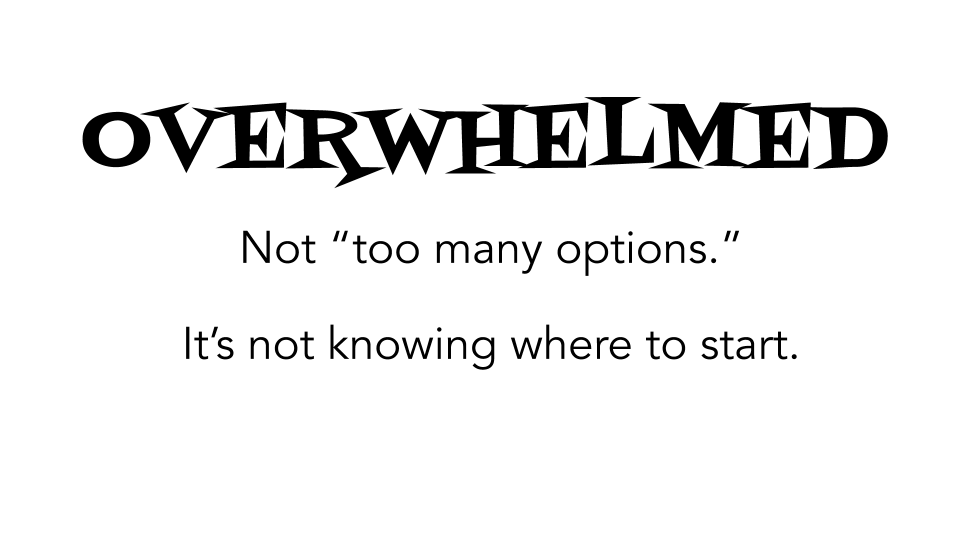
So ... if that's the case ... where should we start?
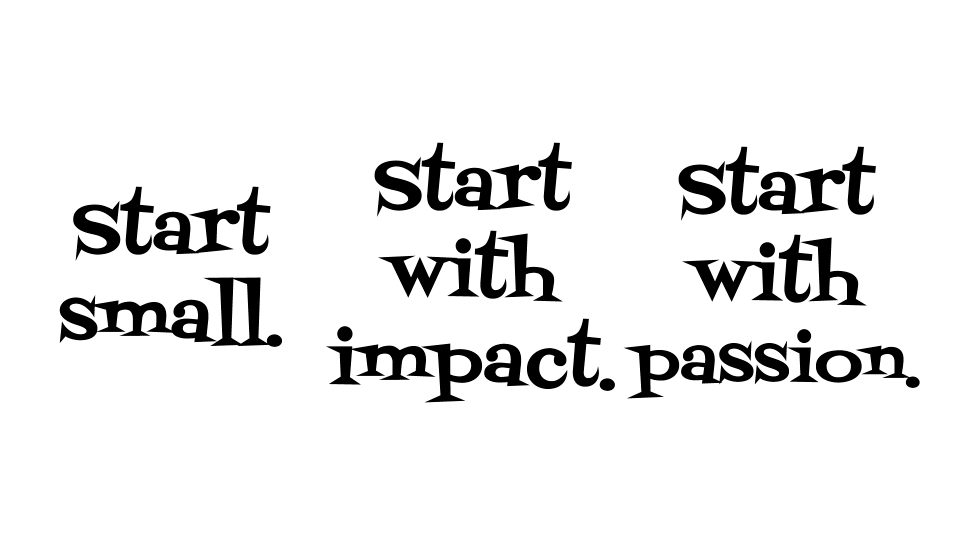
Start small -- Start with something that makes you say, "I can do that."
Start with impact -- What can have the greatest impact on your students? Start with that.
Start with passion -- What are you excited about? What are your students excited about?