
 Find this page at: DitchThatTextbook.com/assess
 Click here to learn more about Matt. Click here to see Matt’s book, Ditch That Textbook, on Amazon.
Matt Miller is available to present at your school or event! He presents to thousands of teachers all around the United States on a wide variety of technology and innovative instruction topics. See his conferences page for more details.

 *** Formative (goformative.com) — Formative lets teachers ask a question (or questions) to students through the students’ devices. When students answer, their answers immediately appear in the teacher dashboard. Teachers can then assign a grade or (coming soon!) add a comment that students see immediately. Question types include fill in the blank, multiple choice or (my favorite!) “show your work” where students draw the answer.
 Paper by FiftyThree (fiftythree.com/paper) (iTunes: free) — Paper is a sketching app. It gives you (or a student) a blank piece of paper and plenty of tools to turn it into a work of art (or a place to jot down ideas). Tools include a fountain pen, watercolor paintbrush, fine point/wide point Sharpie pen and pencil. Create flowcharts or organize with “smart shapes” you can move around. Available for iPad and iPhone.
 Google Drawings (drive.google.com) (Not available for iOS) — Google Drawings lets students add elements to a blank canvas, including text, images, shapes and lines. It’s a very simple Google App, but the options for its use are endless. Some ideas include interactive posters (see how in this blog post) or graphic organizers (see 15+ free graphic organizers here).
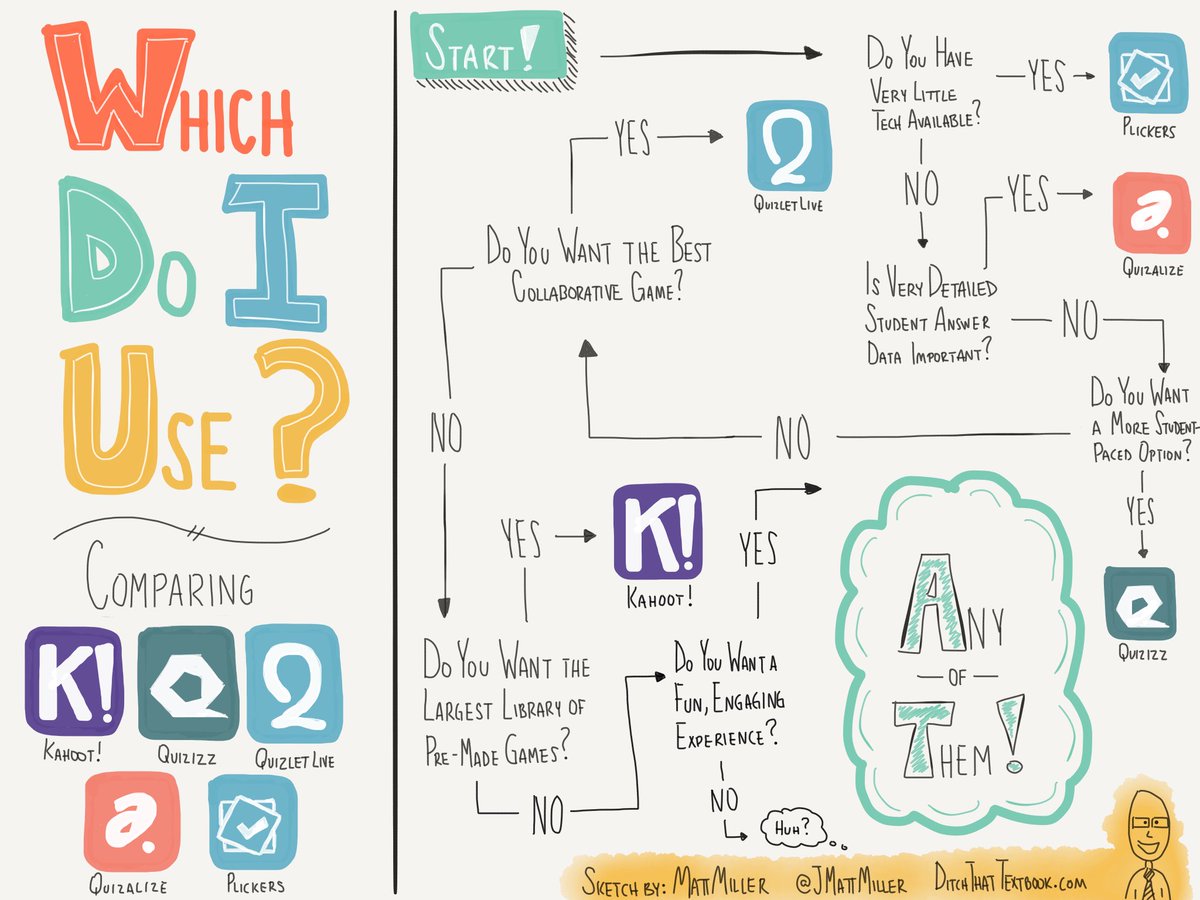
 Kahoot! (getkahoot.com) — Kahoot! turns your classroom into a game show. Create your own questions or choose from millions of publicly available Kahoot! games. Students see questions on the screen and select the correct answer on their own devices. Track who has the most points with a leaderboard after each question. Fun music and flashy graphics make this one a crowd pleaser!
 *** Quizizz (quizizz.com) — lets you turn your multiple-choice questions into a class game show. Students join the game and progress through questions at their own pace. They see the questions and answers on their own screens. The faster they get the correct answer, the more points they receive. Plus, the memes that appear after a correct or incorrect answer are a lot of fun!
 Plickers (plickers.com) — Don’t have devices for every student? No problem. Get instant info on what your students know with Plickers. Students hold up cards that represent the answer they choose (A, B, C or D). The teacher scans the room with his/her phone/tablet camera in the Plickers app. Plickers summarizes student answers and provides quick results.
 Quizlet (quizlet.com) (iTunes: free) — Quizlet is online flashcards with a twist. Teachers (or students!) can create their own cards by typing terms and definitions. From there, students can take simple quizzes, flip through their flashcards and even play games. Space Race and Scatter are student favorites! Plus, their flashcards can be accessed on their phones. With your terms in a device that’s constantly attached to their hip, how can you lose?
Quizalize (quizalize.com) — Quizalize creates a game-show classroom experience like several others in this section. What Quizalize does differently has to do with data. Quizalize gives you the most detailed reports of student data from their responses to the game. Create subcategories of all of your questions and sort data by those subcategories. Quizalize can’t keep up with the flash and the mass of users of some of the other sites. However, what it lacks for there, it makes up in detailed student data.

 *** Quick blog with Google Slides (drive.google.com) — Make writing assignments more collaborative with this quick blog. Students don’t have Google accounts? No problem! Create a Slides presentation and set sharing to “everyone with the link can edit”. Create a slide for every student … this will be their writing space. Students write and then write comments on each other’s writing, much like a blog (or — gasp! — social media!).
 *** TodaysMeet (todaysmeet.com) — Brevity is a virtuous quality in writing. TodaysMeet is a messaging site (think of a chat room that’s created only for your class). Students can write answers, questions, sentences — even links to other sites — in your TodaysMeet room. They’ll have to keep their answers short, though — there’s a 140-character limit! (If they don’t keep it short, they can always submit multiple messages to make one longer message.)
 MakeBeliefsComix (makebeliefscomix.com) (iTunes: free) — Comic strips can make writing fun even for the most reluctant writer. MakeBeliefsComix lets students create comic strips with original artwork. Each character has multiple poses so you can pick the perfect one for the situation in the strip. Add speech and thought bubbles, props, backgrounds and more. Then email or print the strips!

 AudioBoom (audioboom.com) (iTunes: free) — AudioBoom gives students a voice in class — and a way to share that voice. Students can record audio directly from the site (or using the iOS or Android app). Once uploaded to the site, each recording is saved in student accounts and is given a unique URL. Students can share that URL with the teacher, on a class website, in an e-portfolio or with friends or family. It’s a perfect option for audio podcasts, song parodies or more!
 *** Garage Band (on the iOS App Store) — Go farther than recording audio. Add some music! Garage Band lets students play a multitude of different virtual instruments and record them all together in a digital jam session! Save student creations and host a student-produced symphony during class!
 Google Voice (google.com/voice) — Don’t have devices? No problem! Google Voice makes recording audio easy and only requires a phone. Google Voice is like digital voicemail. When you create a Voice account, you choose a phone number (for free!). Students can call that phone number with their phones (or your classroom phone) and leave a voice message. Put a twist on short essays by letting students call their answers in instead of writing them!
Session expired
Please log in again. The login page will open in a new tab. After logging in you can close it and return to this page.