
This page: DitchThatTextbook.com/tieMS2





During staff meetings, agendas can be shared with everyone attending the meeting. Anyone can edit the document add notes.
Students can create documents for notes for a research project. They can share them with classmates and everyone can add new ideas and information to the same document.
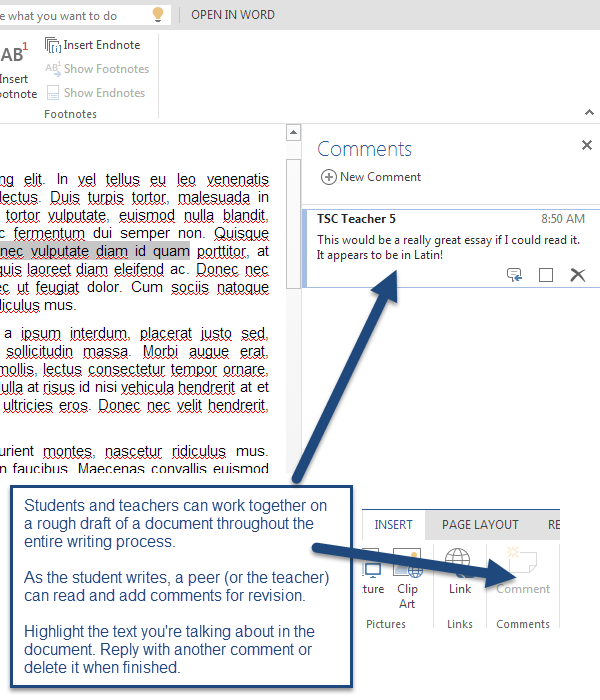
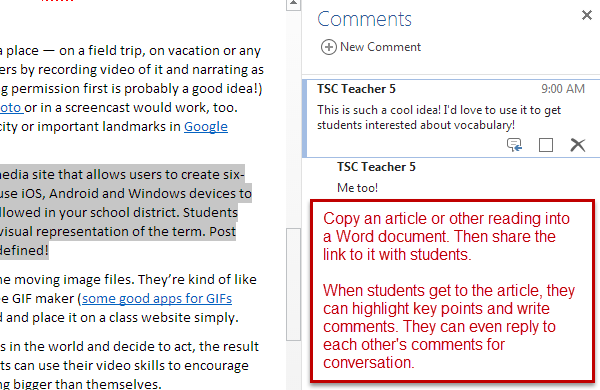
This puts a different spin on online reading discussions. Instead of discussing a reading, the teacher can post a topic of discussion or some questions for students to discuss in a Word document. Students can write their answers in the document (either as actual text in the document or as comments). They can post links to articles to support their ideas and images to illustrate them. The document serves as a record for their digital conversation and can be posted on a class website or in a folder shared with the class.
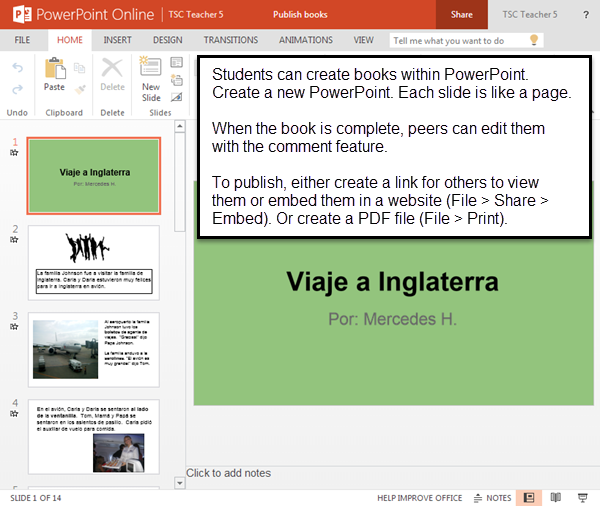
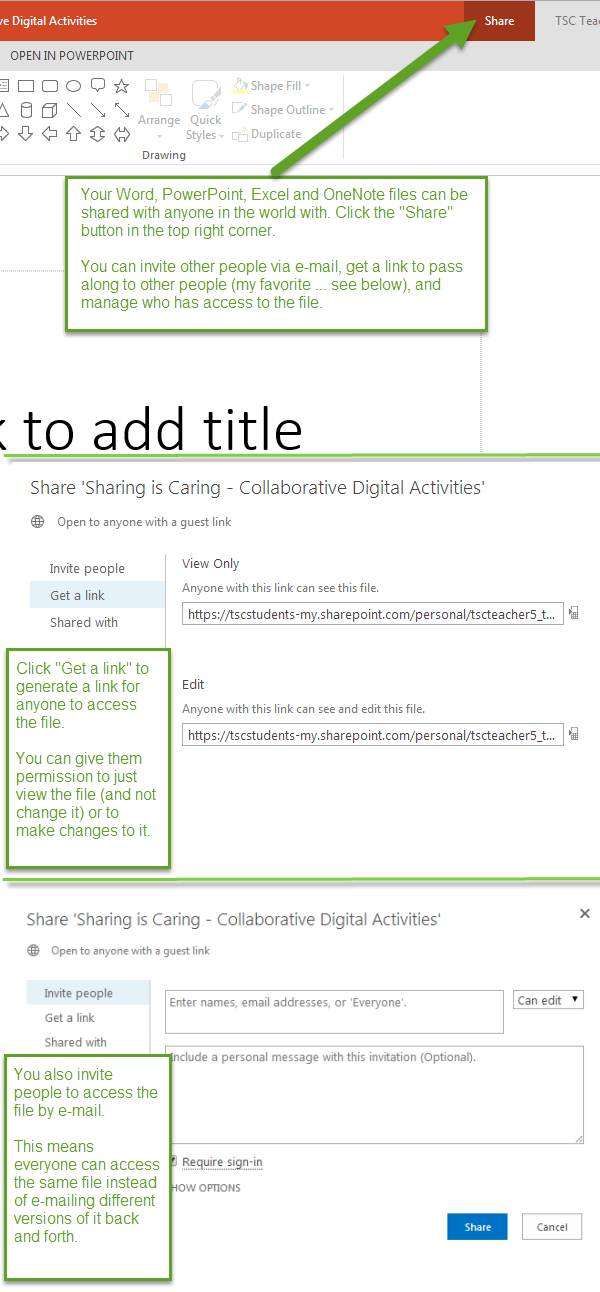
Shared PowerPoints can be a quick and easy way to have students create something and share it with the class. Create a PowerPoint with a slide for each student (maybe with an additional slide as a title slide at the beginning). Share it with the class (use the “Share” button, then “Get a link” and create a link for “Edit — Anyone with this link can see and edit this file.”
Assign a slide number to each student and ask them to answer a question, give an opinion, share some facts, create a story, etc. on the slide.
When the activity is over, the PowerPoint can be shown to everyone on a projector screen or embedded in a class website.
Sometimes words won’t do the same great job a good image will do. Give students a question or prompt that needs visual representation. They can do an image search, find a good example and add it to their slide in a shared PowerPoint (see above). You can show everyone’s examples on a projector screen or let students scroll through the slides themselves.
Google Presentations is a great tool to show student art work to an audience. Digital pictures or scans of student work can be added to the slides of a presentation. That presentation can be shown at a school function or embedded in a website or other medium on the Internet. With the right exposure, student art show on the Web could have a global audience.
If a picture is worth a thousand words, it should serve as a great writing prompt! Using a shared PowerPoint (see above), place a photo on the title slide. Then assign every student a slide with some instructions on what and how they should write. Students can then peer edit each other’s work (using comments) or just read what others have written.
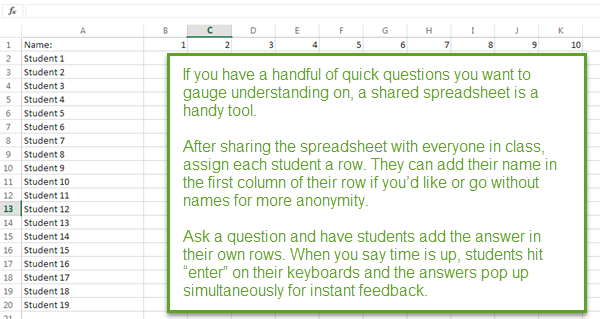
A good way to understand what life is like in another part of the state, country or world is to gather data from the environment and compare it. Students can gather information on the weather, on different elements in the environment or even observations of the students in the school. Add the data to a shared spreadsheet and create graphs to analyze.
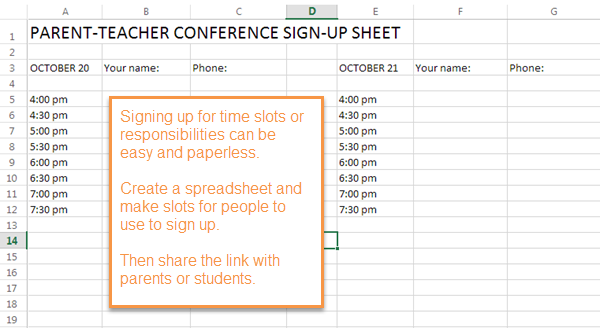

Homework can be turned in through Excel surveys as well. Create a survey (make sure to use “Name:” as the first question!) and share it with students. Instead of turning in paper assignments, all of their answers will be gathered in an Excel spreadsheet after they take the survey.
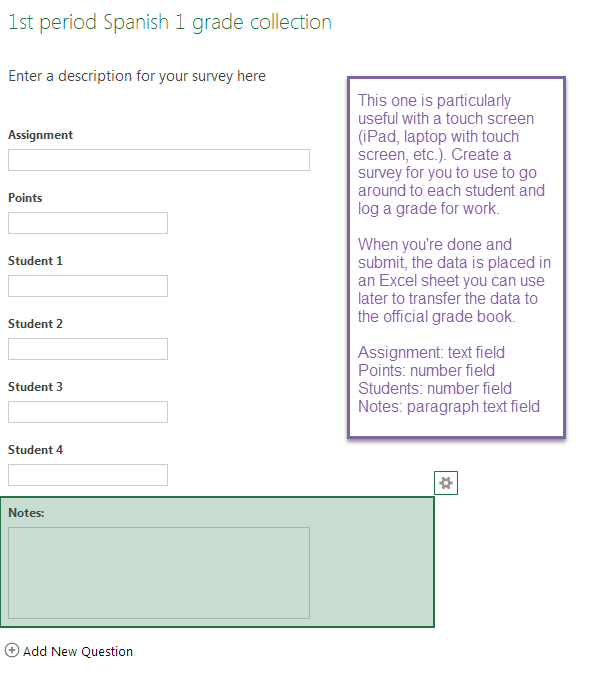
Health and physical education students can gather data on how they work out and what they eat using Excel surveys. The teacher can create a survey to collect the information students need to submit. Teachers can then share the survey with the student in a link or in an e-mail. The student can visit the survey and submit information whenever necessary. Students can analyze data later from the spreadsheet.
Make your LCD projector a truly interactive whiteboard with a shared PowerPoint or Word document. Project the PowerPoint or document on a screen and have students open the file by sharing a link with them. As they add text, images, etc., their changes are reflected immediately on the screen for everyone to see.
Session expired
Please log in again. The login page will open in a new tab. After logging in you can close it and return to this page.