
Remember the days of the simple "web whiteboard"? They were great for a quick sketch, but as we move toward more personalized learning, we need tools that do more than just let students draw.
Enter Brisk Boost Whiteboard.
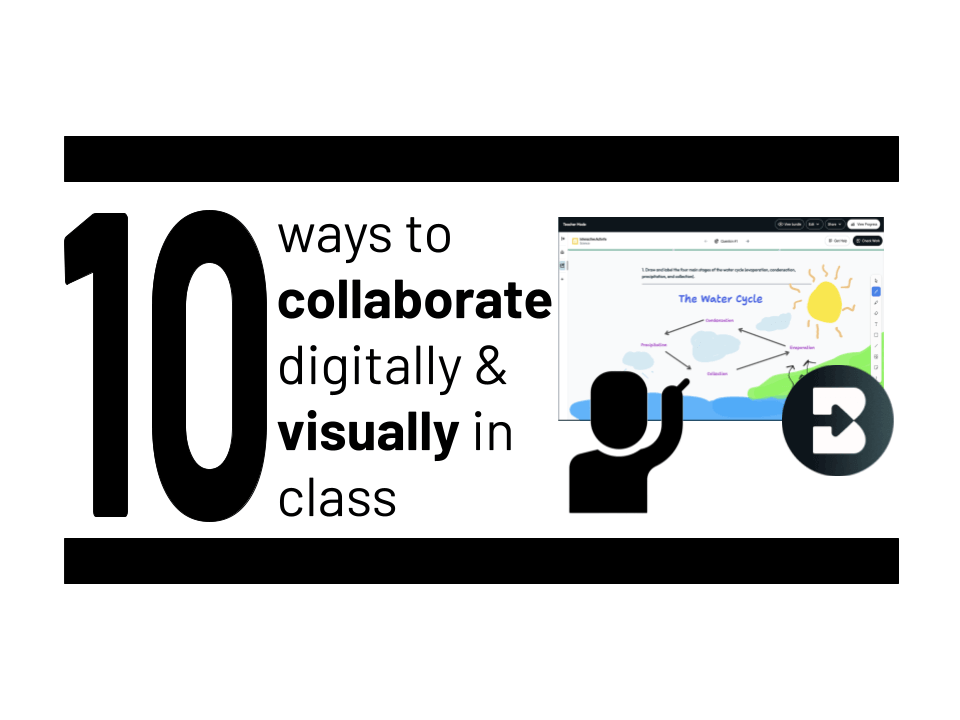
Brisk Boost now takes the visual, collaborative energy of a digital whiteboard and supercharges it with AI. Instead of just a blank canvas, you’re giving students a space where they can interact with resources, get real-time feedback from an AI tutor, and show their thinking visually. Check out my demo of Brisk's Whiteboard feature at the TCEA 26 conference.
The best part? It works right inside the tools you already use (Google Docs, Slides, or any website).
How to Launch a Brisk Boost Whiteboard
Transitioning from a basic drawing tool to an AI-powered whiteboard is easier than you think. Whether you are starting from a favorite resource or a blank slate, here is the official workflow:
- Create Your Activity:
Option A: Use Quick Create at app.briskteaching.com.
Option B: Click the Boost Activity button directly from the Brisk Chrome extension on any website, article, or YouTube video. - Set the Stage: Select Whiteboard as your activity type. Enter your prompt, then choose your grade level, standards, and language. Brisk will automatically generate questions designed for visual responses.
Customize (Optional): Click Edit Template if you want to refine the questions, upload a background image for students to annotate, or add specific visual scaffolds. - Share with Students: Send the activity link directly to your students or post it to your LMS (Google Classroom, Canvas, etc.).
- Watch the Magic Happen: As students draw, label, and explain their ideas, you can review all their whiteboards in one place from your teacher dashboard.
Your secret weapon: "Check Work" and "Get Help"
Unlike a static whiteboard, Brisk Boost gives students two powerful buttons to own their learning:
- Check Work: Students click this to get instant feedback. Brisk highlights what they got right and points out where they might need to revise—keeping the momentum going without waiting for you to get to their desk.
- Get Help: If a student is stuck, they can use this button to clarify ideas or get a nudge on what to do next. It’s designed to coach them, not just give them the answers.
Teacher superpowers activate: Class-wide insights
Once the activity is buzzing, Brisk surfaces Learning Insights. It looks for patterns across the whole class to show you exactly what students understand and where they are struggling. It will even suggest "Next Ideas"—personalized learning activities you can launch immediately based on those insights.
Here are 10 ways to use the Brisk Boost Whiteboard to collaborate digitally and visually in your class:

1. Interactive “see my thinking” whiteboards

Instead of just drawing on a screen, use the Boost Whiteboard feature. You can push a prompt to the whole class, and as students sketch their models or diagrams, you see their thinking unfold in real-time from your teacher dashboard. It’s like being able to look at 30 notebooks at once!
2. Visual storytelling with AI coaching

Have students tell a story by sketching scenes. Use the integrated AI Chat to have students ask, "What is a descriptive detail I could add to this drawing?" or "How can I show the character's emotion visually?" The AI acts as a creative partner as they sketch.
3. Diagramming new ideas (with a scaffold)

Certain concepts—like the water cycle or a sentence diagram—need a visual. In Brisk Boost, students can recreate or label a diagram. If they get stuck, they hit "Get Help" in the chat, and the AI provides a nudge to keep them moving without giving away the answer.
4. Graphic organizers 2.0

Upload a Venn diagram or Frayer model as a background image in the Whiteboard. Students fill it out using the drawing tools. If they aren't sure where a concept fits, they can use the AI Chat to discuss the relationship between ideas before they commit it to the board. Visit 50 FREE graphic organizers — and how to make your own and grab one to add to your Brisk Boost activity.
5. Turning data into visual reality

Have students take raw data and sketch charts or infographics on their canvas. They can use the "Check Work" button to ask the AI, "Does my graph accurately represent the data trends?" It turns a math task into a high-level critical thinking exercise.
🔔 Grab your FREE online whiteboard bell ringer pack!
Ready to bring more interaction to your morning routine? Grab your Online Whiteboard Bell Ringer Pack to get 5 versatile templates and 15 ready-to-use activity ideas to use with your favorite online whiteboard tool.

Whether you want to check the "vibe" of the room, dive into error analysis, or start a high-energy "Would You Rather" debate, these low-prep resources are designed to work with the digital whiteboard tool you already use.
By getting this resource, you’ll also join the Ditch That Textbook community, getting weekly inspiration,
templates, and even more classroom-ready ideas delivered straight to your inbox.
6. Interactive storyboards

Students can sketch a history timeline or a book plot frame-by-frame. To dive deeper, they can use the AI Chat to role-play: "I'm drawing the Battle of Yorktown; what are three key elements I should include to make it historically accurate?"
7. Impromptu digital posters

Brisk Boost makes it easy to pull in images and text. Have students create digital posters to summarize a unit. When they're finished, the teacher can see "Learning Insights" that summarize the common themes or misconceptions across all the posters in the class.
8. Collaborating at a distance

Because Brisk Boost is web-based, it’s perfect for distance or hybrid learning. Share a Whiteboard link, and students work through a visual task while the AI Chat provides the "just-in-time" support they’d usually get if you were standing right over their shoulder.
9. The ultimate opinion meter

Draw a spectrum (Agree/Disagree) on the board. Students place a mark where they stand. Then, they must use the AI Chat to draft a one-sentence justification for their placement. You get a visual map of class opinion plus a digital record of their reasoning.
10. Visual image annotation

Bring a historical photo or a complex scientific diagram into the Whiteboard as a background. Ask students to annotate it by drawing and labeling key parts. They can use "Check Work" to see if their labels are accurate, allowing for instant self-correction. Try using Brisk Boost Whiteboard with a Caption This activity!

sounds really cool! I’ve been using Realtimeboard https://realtimeboard.com/ for some time now to do similar stuff. Can handle images, video, google docs, pdfs, etc all in one endless screen you can zoom in and out of. I do things like create a big map of the world as a background and kids drag videos of world music to the appropriate part of the world, or create a big graphic organiser for exam essay preparation where themes, screenshot examples, links and videos can all be there.
Still none of these quite match the actual whiteboard and a marker for speed when I need to get a quick idea across…
How is similar/ different/ or better than Padlet?